
Step 13 of 14 · Start sending
Turn on a Welcome series
About 10 min
A welcome series greets every new subscriber automatically — usually your best-performing email.
Emails send only after your domain is authenticated.
- 1Click Flows, then Create Flow, and choose Welcome Series. It comes with three emails, a day and three days apart.
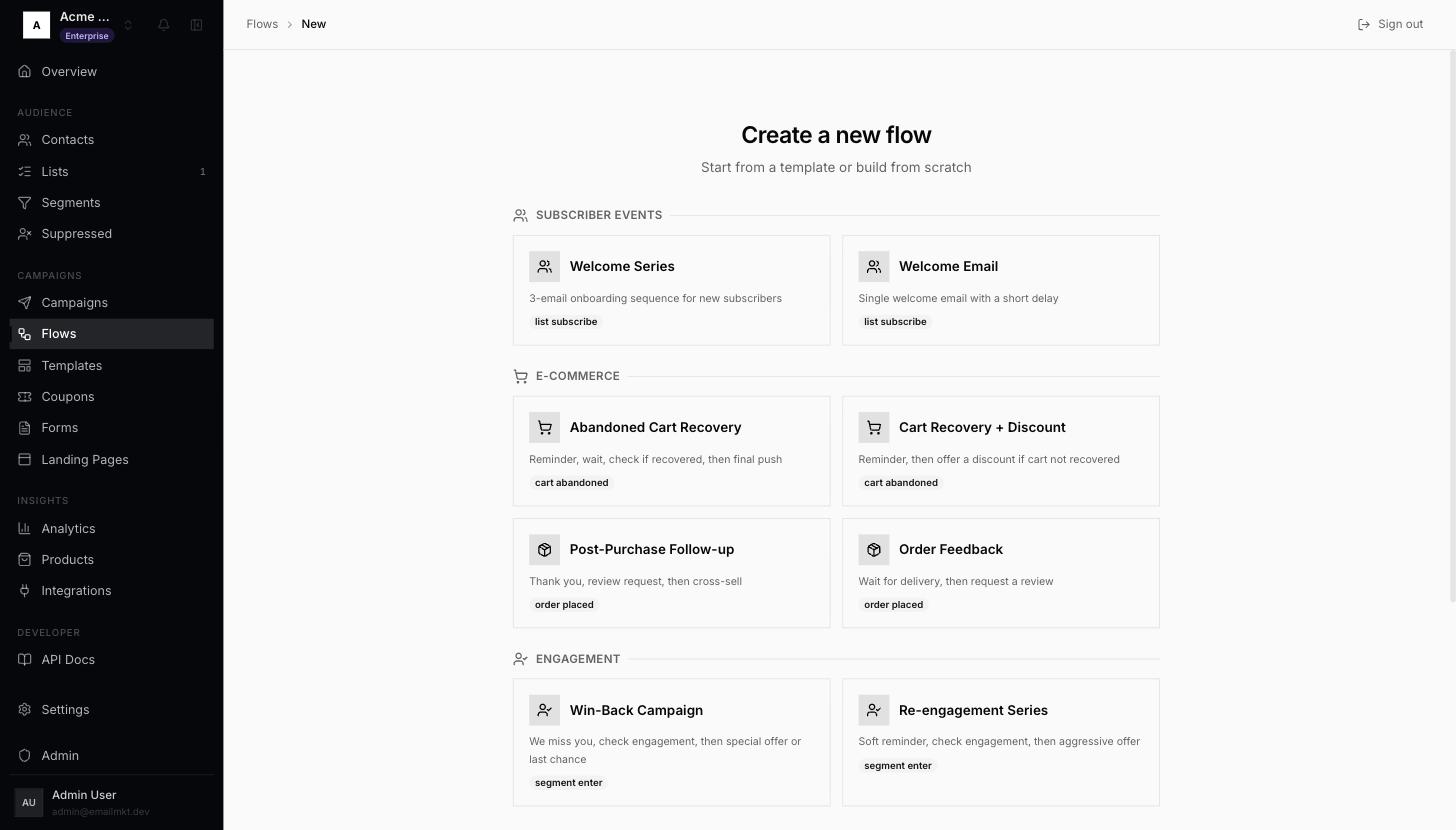
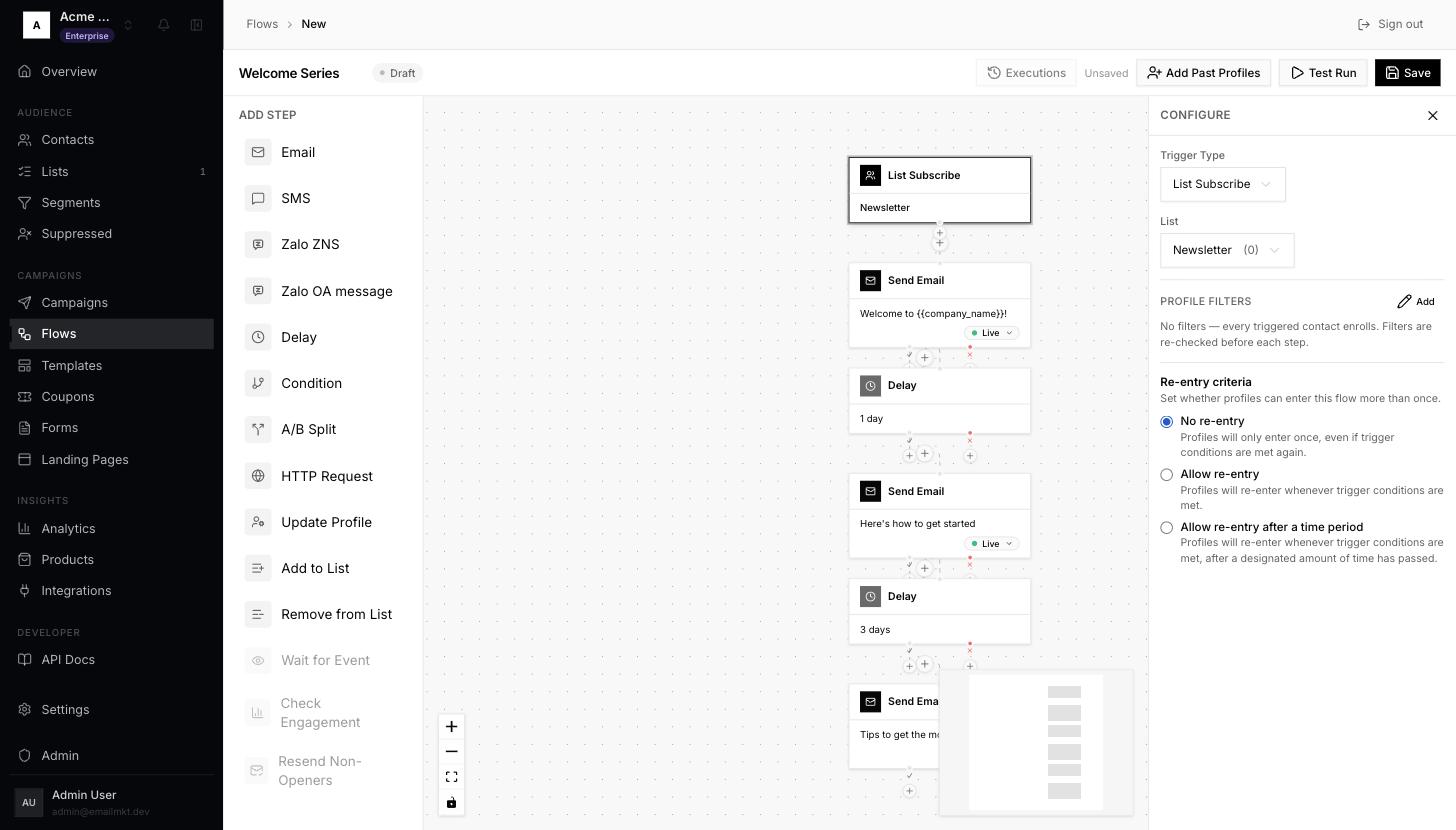
Flow templates - 2Click the List Subscribe box at the top. On the right, under List, choose the list your popup uses. Under Re-entry criteria, pick No re-entry so nobody is welcomed twice.
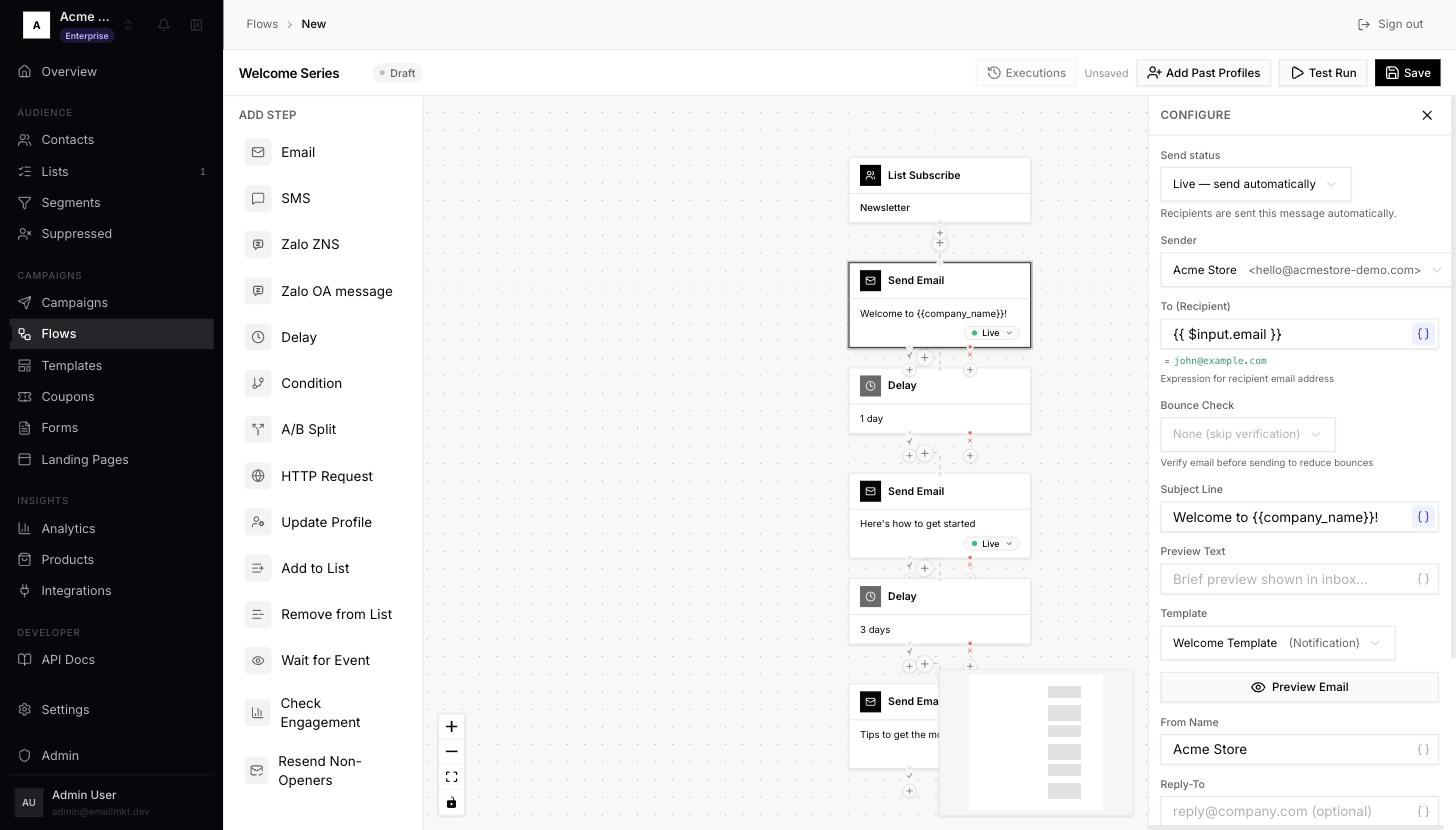
Trigger settings - 3Click the first Send Email box. On the right, choose your Sender, check the Subject Line, and pick your email under Template. Leave Send status on Live — send automatically. Do the same for the other two emails.
Email step settings - 4Click Save, then Activate. You will see Flow activated. If a yellow box says personalization tags won't render, open it — it names the email and the tag to fix.
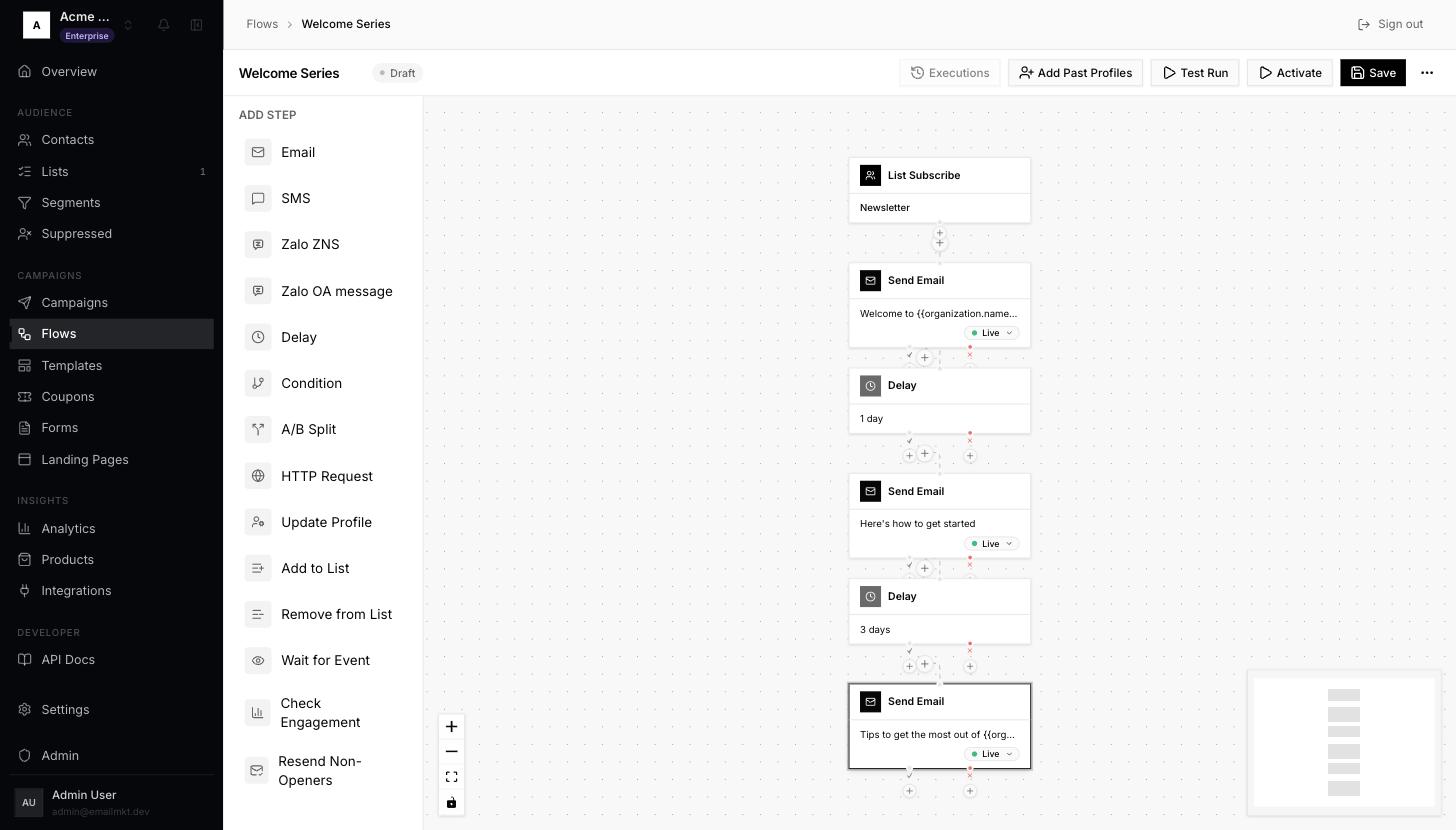
Saved flow with Activate
Set an email step to Draft — don't send (skip to next) while you are still writing it.
Done when: A flow triggered by joining a list (or submitting a form) is Active.