
Step 14 of 14 · Start sending
Create your first campaign and send a test
About 10 min
Campaigns are one-off emails: a launch, a sale, a newsletter. Sending yourself a test first catches mistakes.
- 1Click Campaigns, then Create Campaign, and choose Email.
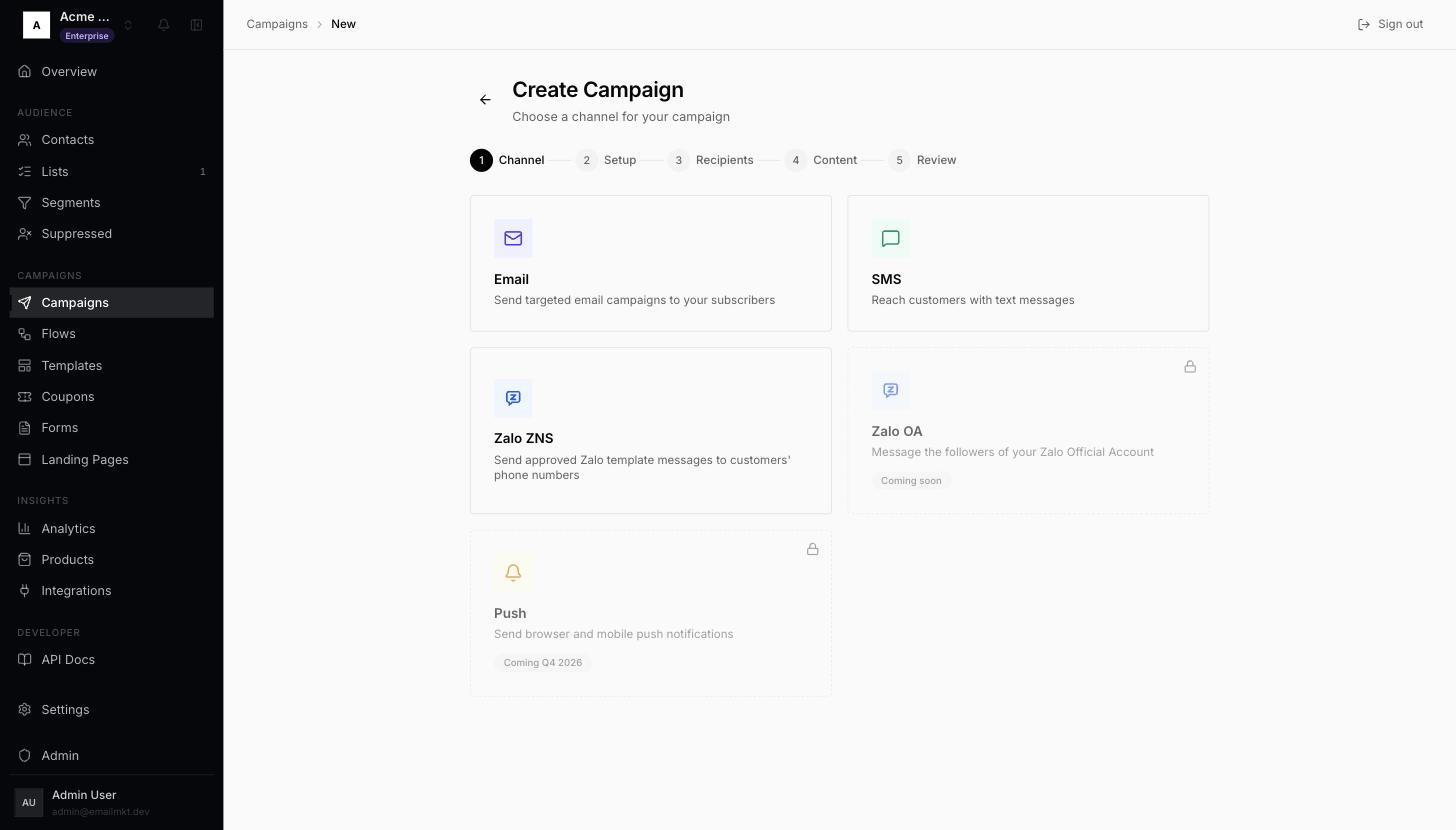
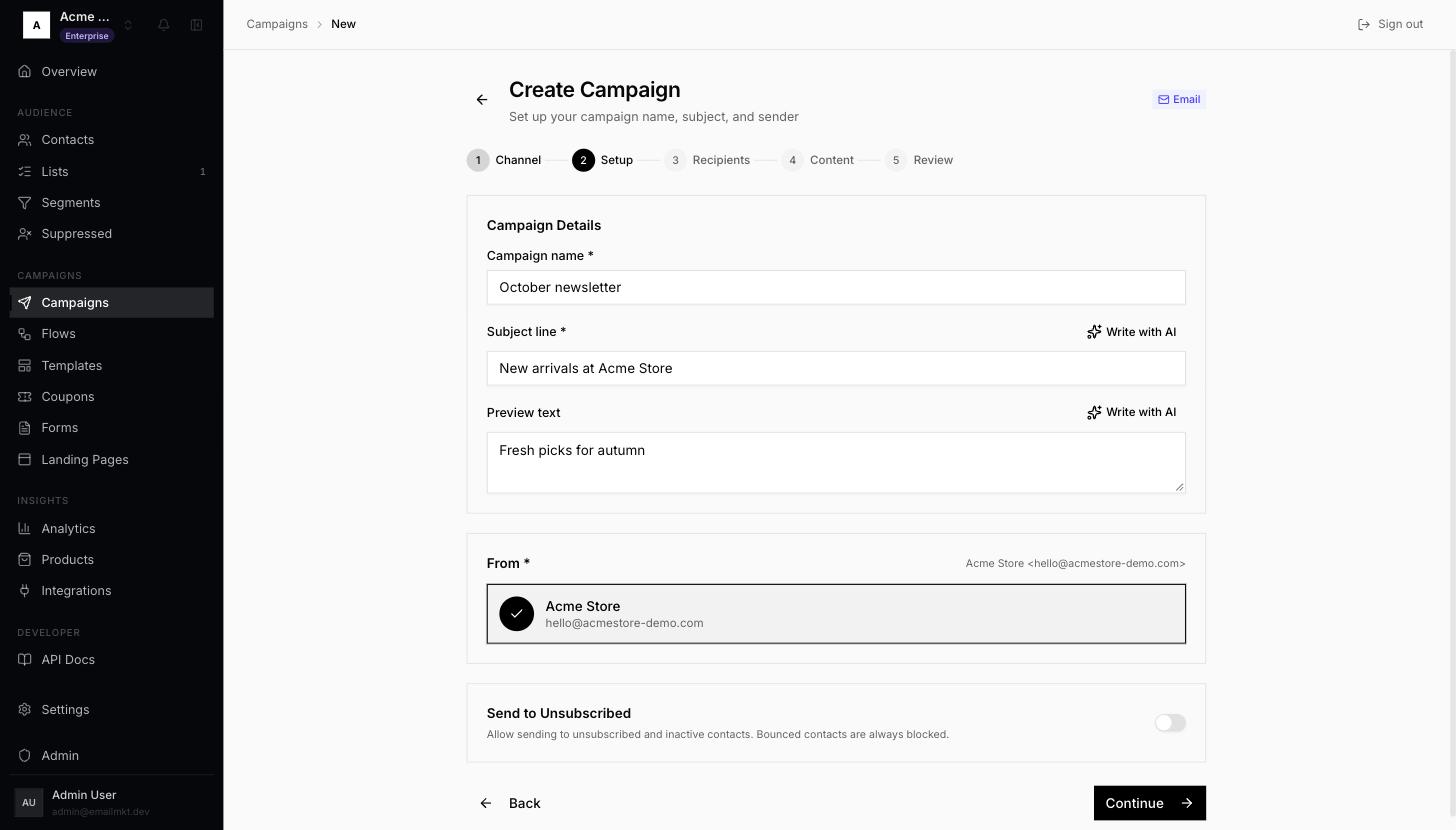
Create Campaign, channel step - 2Fill Campaign name, Subject line and, if you like, Preview text. Under From, click your sender so it shows a tick — Continue stays grey until you do. Click Continue.
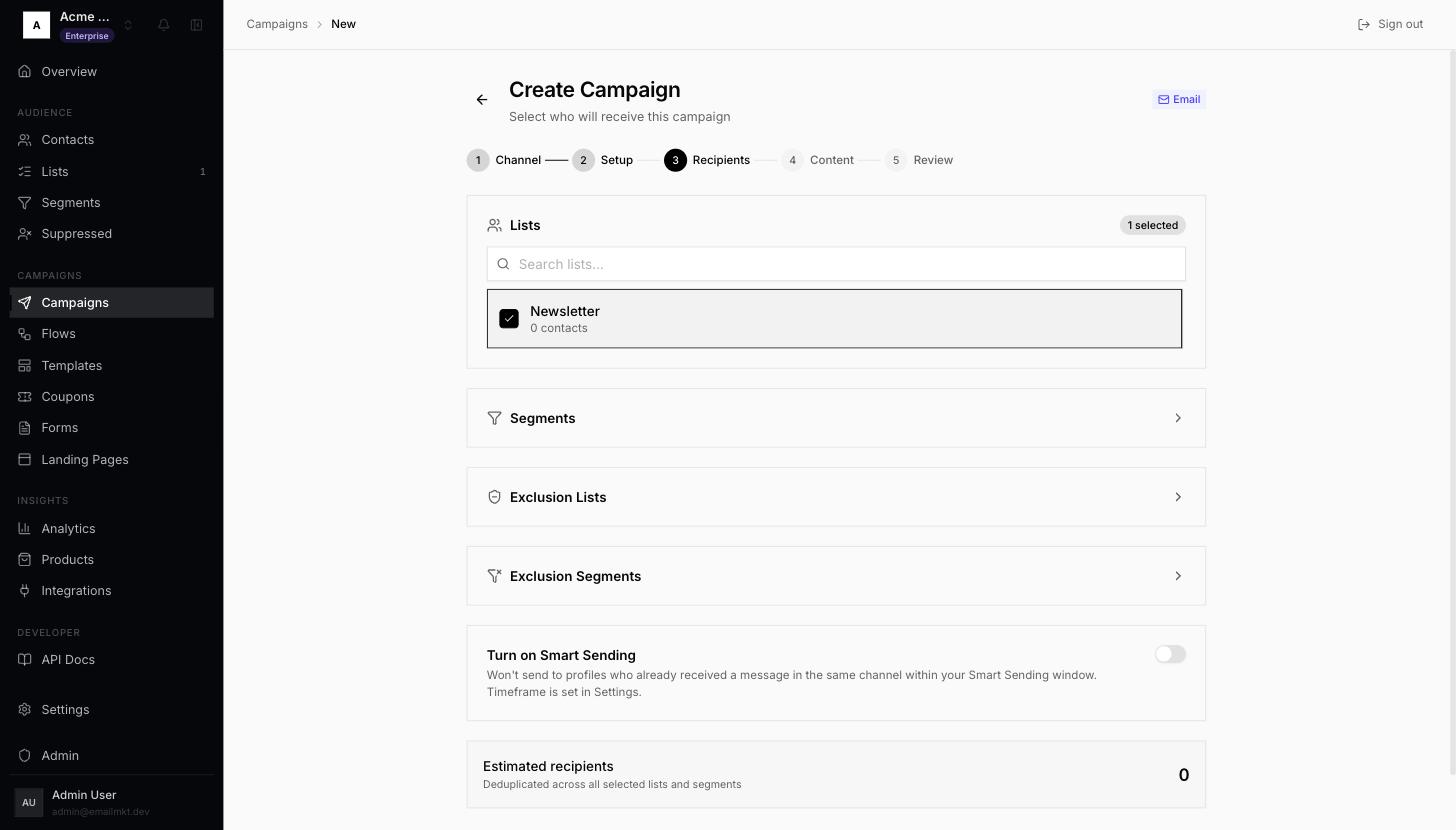
Setup step - 3Under Lists, tick your list. Estimated recipients shows how many people will get it. Click Continue.
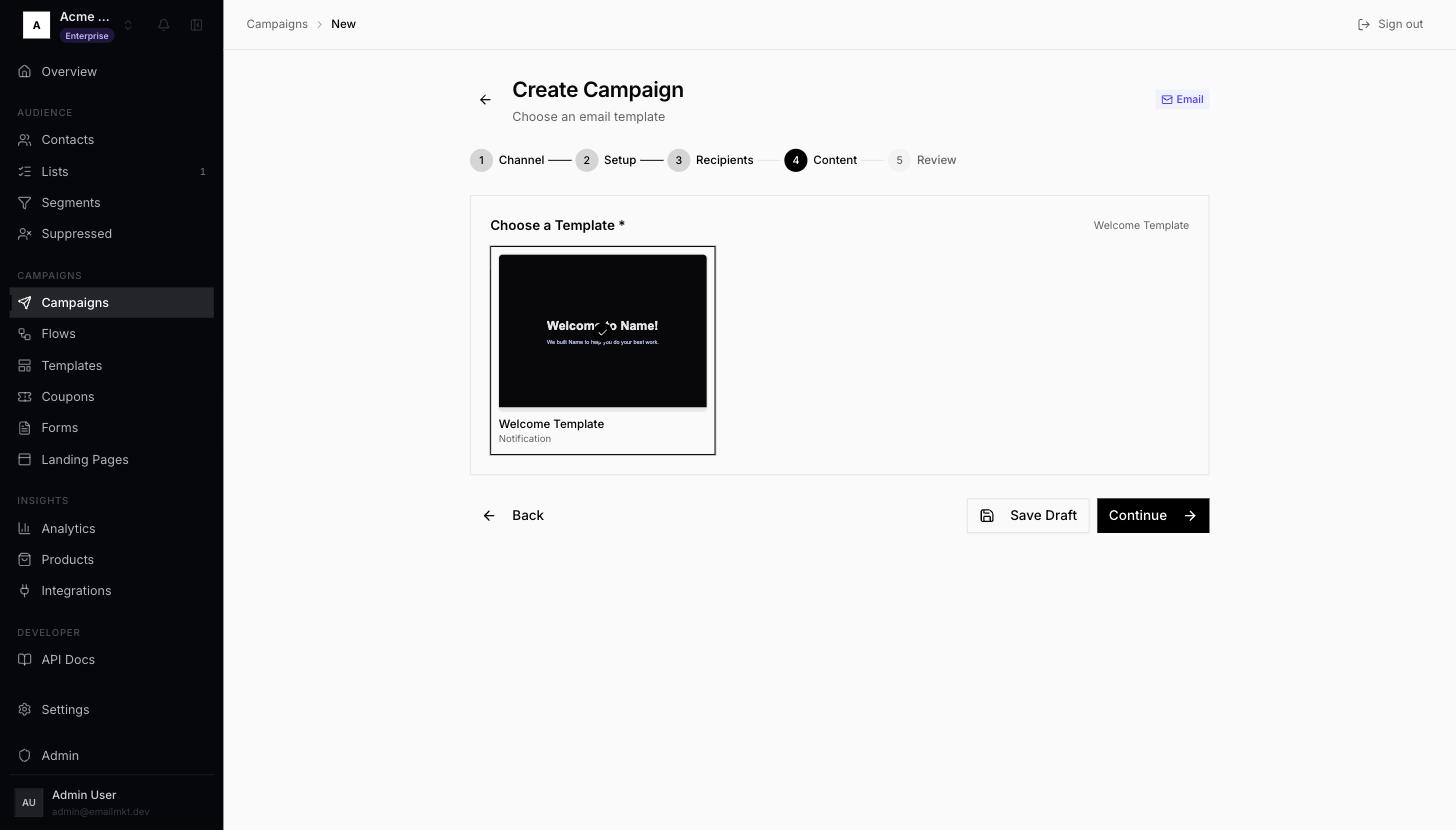
Recipients step - 4Under Choose a Template, click your email. Click Continue.
Content step - 5On Review, check every item in the Review Checklist is ticked. Click Save Draft — not Send Now yet.
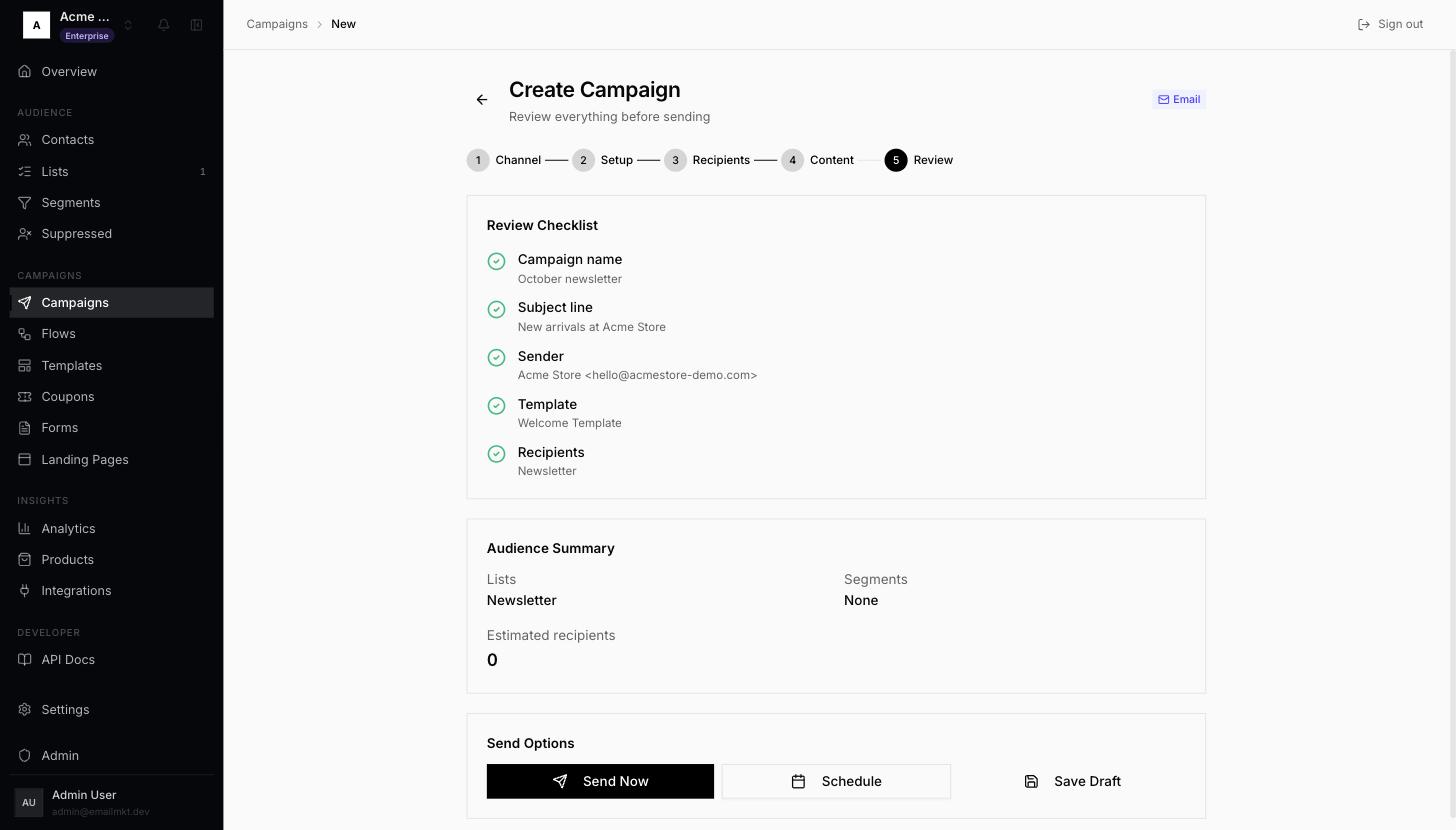
Review step - 6Send yourself a test: open the template (Templates › your email) and use Send Test. When it looks right in your inbox, tick this step.
- 7When you are ready, open the campaign and click Send Now or Schedule.
Done when: You tick it after the test email reached your inbox.