
Step 3 of 14 · Set up your account
Authenticate your sending domain
About 15 min
Inbox providers only deliver mail from domains that prove they allowed it. Until your domain is authenticated, campaigns and automated emails from it will not send — test emails still work.
Campaigns and automations do not send until this step is done.
Start the wizard
- 1Click Settings (1), then Domains (2), then Add domain (3).
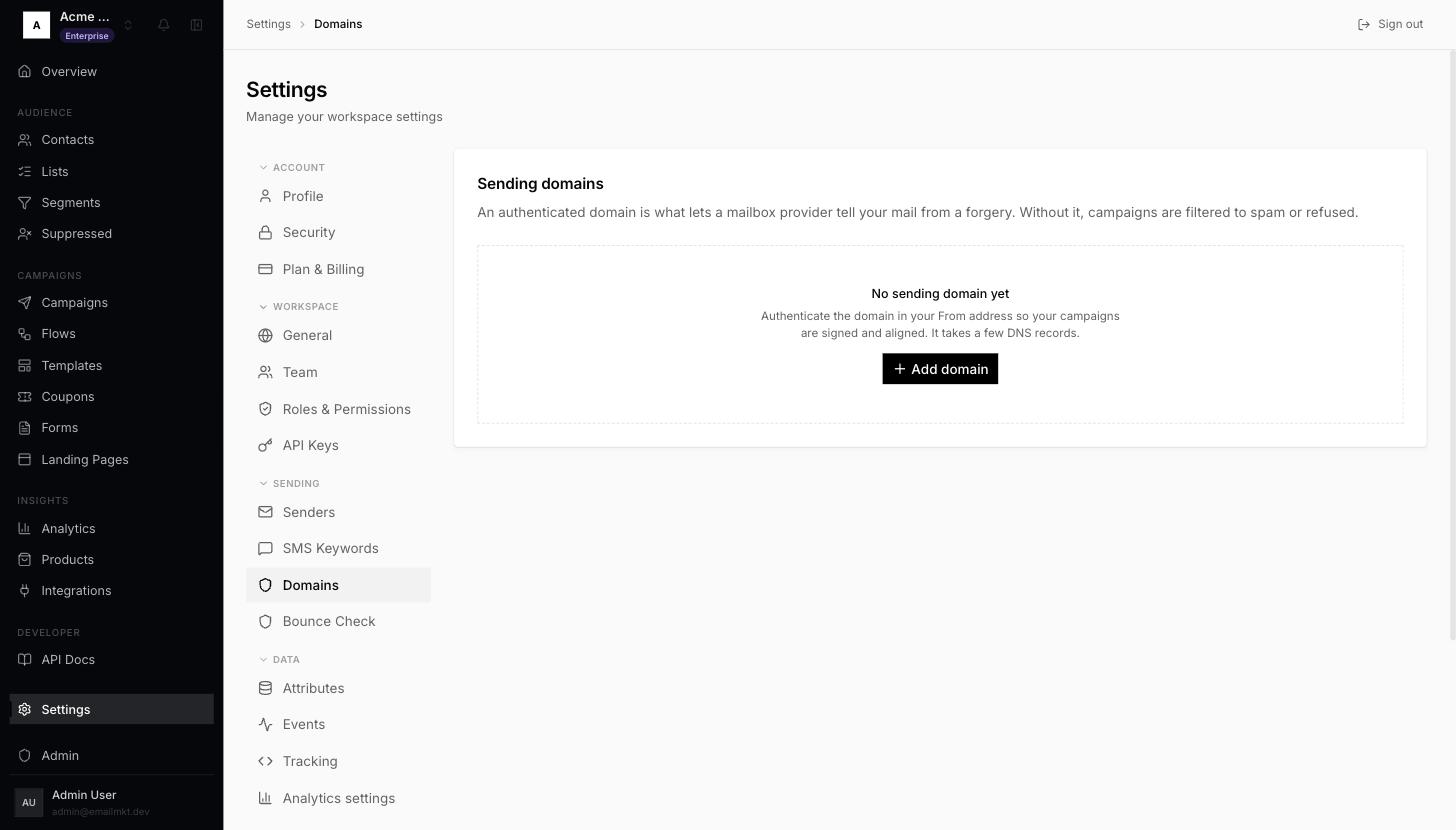
Sending domains page with Add domain - 2In The domain you send from, type the domain of your email address — for
[email protected]that isacme.com. Click Continue. - 3Pick where your domain's DNS is managed (Cloudflare (1), GoDaddy, Namecheap, Shopify, Squarespace and others). If you are not sure, it is usually where you bought the domain. Click Continue (2).
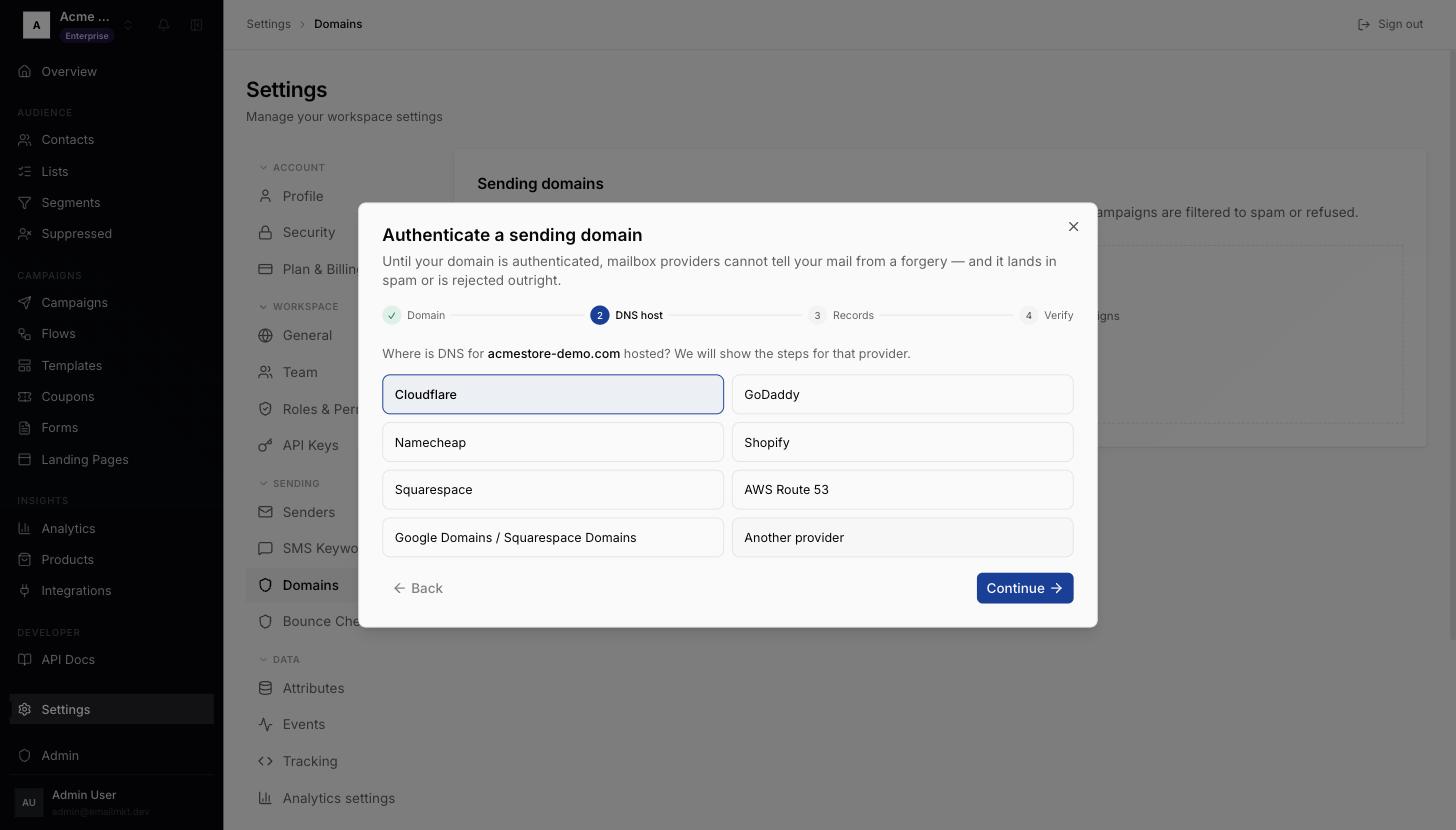
Choose your DNS host - 4Start with the Domain ownership TXT record (1): copy its name and value into your DNS (see the Cloudflare example below — Open Cloudflare (2) takes you there). Then click I've added the records.
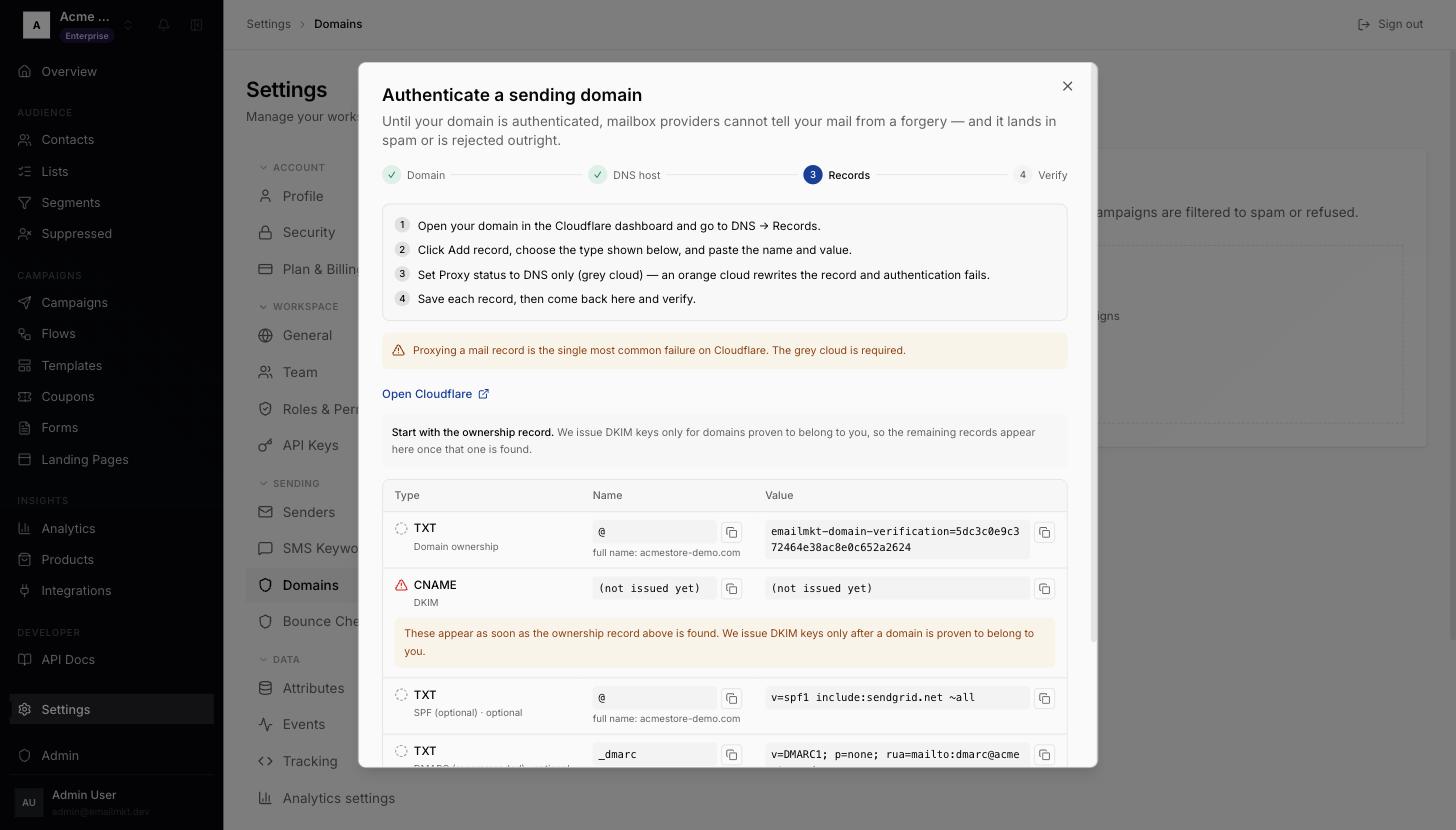
DNS records to add - 5When ownership is found, the remaining records (return-path and DKIM) get their values. Add them the same way and click Check again until you see that your domain is authenticated.
The records you add
The exact values are shown in the app — copy them from there. DNS changes can take a few minutes to an hour to appear.
| Record | Type | Required |
|---|---|---|
| Domain ownership | TXT | Yes |
| Return-path (carries SPF) | CNAME | Yes |
| DKIM key 1 | CNAME | Yes |
| DKIM key 2 | CNAME | Yes |
| SPF (optional) | TXT | No |
| DMARC (recommended) | TXT | No |
Example: adding the records in Cloudflare
- 6Sign in to Cloudflare and click your domain.
- 7In the left menu click DNS, then Records, then Add record.
- 8Set Type to the type shown in the app (TXT or CNAME), paste the Name and the Content exactly as shown.
- 9For every CNAME record, switch Proxy status to DNS only (grey cloud). A proxied (orange) record cannot be verified.
- 10Click Save. Repeat for each record, then go back to the app and click Check again.
Cloudflare adds your domain to the name automatically — if the app shows em123.acme.com, typing em123 is enough.
You can close the wizard and come back: the domain stays under Settings › Email › Domains with a Check button.
Done when: The domain shows Verified on Settings › Email › Domains.